

SFTP Export
Latest version: 5.0.1 build 909. September 11, 2026.
The SFTP Export plugin is designed for technical professionals who need to move parsed data from our data loggers to remote servers in a secure, reliable, and automated way. The plugin sends records to a remote host using either the SFTP or FTP protocol and operates in real time. It can append data to a single growing log file or create separate files for each record, depending on your integration and archiving needs.
This plugin works after the main parser component in your logging system. Any of our data loggers receive raw data from a data source, parse it into fields, and pass selected values to the SFTP Export plugin. The plugin then opens a secure or plain connection to a remote host and writes the selected parser item to a file using the chosen transfer mode. Through an intermediate server and plain text files that are easy to control, this architecture lets you keep data logging and processing systems separate.
The plugin supports two connection types. FTP is the classic file transfer protocol and is suitable inside a trusted local network where security is handled by other means. SFTP is a secure protocol that runs over an SSH v2 channel and is recommended for any connection over the Internet or untrusted networks. While SFTP needs more time to establish each connection and transfer a packet, it provides encryption and strong authentication, which is critical for production systems.
Typical usage scenarios include uploading measurement logs from serial devices to a central Linux server, publishing processed TCP data to a cloud file storage gateway, or sending timestamped status records from industrial controllers to a remote analytics system. The plugin can work continuously and does not require manual intervention once configured. You can control how files are named, where they are placed on the remote host, and whether the target file is reused or created brand new for each record.
Integration Example with Advanced Serial Data Logger
This example shows how to use the SFTP Export plugin with Advanced Serial Data Logger when collecting temperature data from a serial device. Assume that your device sends text lines in the following format:
2026-01-02 08:00:00;T=23.5;UNIT=C
2026-01-02 08:00:05;T=23.6;UNIT=C
2026-01-02 08:00:10;T=23.7;UNIT=C
You configure the parser inside Advanced Serial Data Logger to read each line, extract the time stamp and temperature, and build a formatted string. For example, the parser can produce variables:
DATE_TIME_STAMP = "2026-01-02 08:00:00"
TEMP_VALUE = "23.5"
UNIT = "C"
LOG_LINE = "2026-01-02 08:00:00;23.5;C"
In the SFTP Export plugin settings, you set:
- Connection type: SFTP
- Host: "sftp.example.com"
- Port: 22
- Username: "loggeruser"
- Password: a secure password value
- Remote folder: "/data/temperature"
- Transfer type: Text
- Mode: Append record to file
- Parser item: LOG_LINE
- Remote file: "temp_log.csv"
With this setup, every time the logger parses a line, the plugin connects to the remote SFTP server if needed and appends a text line with the content of LOG_LINE to the file "/data/temperature/temp_log.csv". After three records, the remote file will contain:
2026-01-02 08:00:00;23.5;C
2026-01-02 08:00:05;23.6;C
2026-01-02 08:00:10;23.7;C
Key Features
- Real-time export of parsed data to remote FTP or SFTP servers.
- Support for three file modes: single record, append to file, or new file per record.
- Text and binary transfer modes with automatic line ending conversion in text mode.
- Configurable remote folder and automatic directory creation when permissions allow.
- Parser item selection for exporting.
Summary
The SFTP Export plugin provides a reliable and configurable way to move parsed data from our data loggers to remote servers using FTP or secure SFTP. With multiple file modes, text and binary support, and integration based on parser items, it adapts easily to many different logging, archiving, and data sharing scenarios.
How to enable this plugin
The figure below shows how to select the plugin on the "Modules" page.
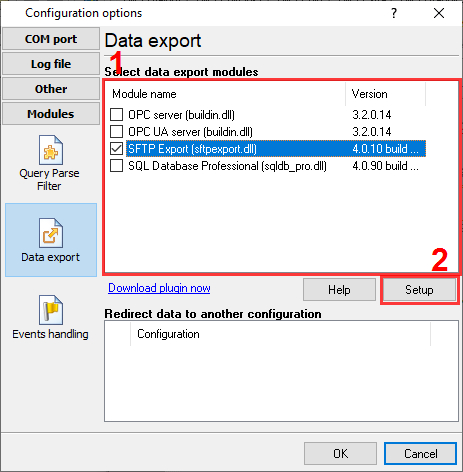
Fig.1. Selecting the plugin.
How to configure the plugin
The figure below shows how to configure the plugin. Please, look at the documentation for the full description of all settings.
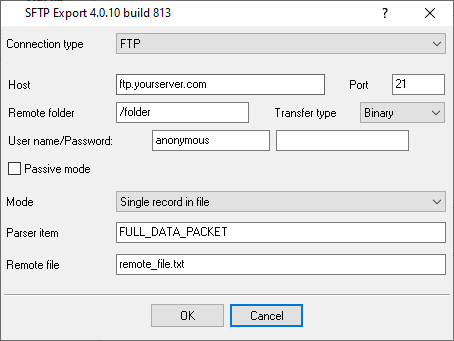
Fig.2. Configuring the plugin.
Read more about other plugins:
All plugins | SQL Database Professional | Cloud Database Professional | ODBC database | Direct Excel/OpenOpffice Calc/LibreOffice Calc Connection | Google Sheets Professional | Excel Export Professional | Send keystrokes | DDE Server | Local (desktop) database | Geo Export | Printer out | Web Server | HTTP POST GET & InfluxDB Export | SFTP Export | MQTT data receiving and publishing | OPC UA Server