

Siemens Simatic S5,S7
Latest version: 5.0.1 build 909. September 11, 2026.
The Siemens S7 MPI / PPI plugin adds direct communication with SIMATIC S5 or S7 controllers to Advanced Serial Data Logger, Advanced TCP/IP Data Logger, and Data Logger Suite. It supports S7 200, S7 300, and S7 400 PLC families and has been tested with Speed7 CPU and S7-compatible PLCs from SAIA. The plugin can read all standard memory areas that are available in your PLC program, such as flags, data blocks, input and output image memory, timers, and counters. It is designed for technical professionals who need stable and predictable data collection from Siemens controllers without additional middleware.
The plugin supports several communication paths so that you can integrate it into existing installations. Supported interfaces include MPI for S7 300 and S7 400, PPI for S7 200, ISO over TCP, ISO over TCP with CP243, and MPI via IBH NetLink MPI to Ethernet gateway. You can use either serial ports with an MPI or PPI adapter or TCP Ethernet connections, depending on your PLC hardware and available network infrastructure. Each request is configured with the parameters such as CPU type, connection type, protocol, rack, slot, and memory area.
Integration with Advanced TCP/IP Data Logger (ISO over TCP example)
For a TCP based configuration with an S7 300 or S7 400 CPU and CP343/443 or a compatible Ethernet CP, you configure the connection in Advanced TCP/IP Data Logger. You define a TCP client channel that connects to the PLC IP address at port 102, select the Siemens S7 MPI / PPI plugin for parsing, and then configure one or more requests inside the plugin. The logger then manages the TCP session while the plugin formats requests and interprets responses.
A typical data sample received from the PLC (simplified for illustration) might look like this:
2026-01-02 08:00:00  PLC_IP:102 → LOGGER_IP:50000
03 00 00 1B 02 F0 80 32 07 00 00 00 01 00 0E 00 00 04 01 12 0A 10 02 00 0A 00 00
S7 payload bytes (last part):
04 01 12 0A 10 02 00 0A 00 00
The plugin extracts the user data part of the S7 telegram, validates the CRC where applicable, and then maps bytes to internal variables. For example, if the configuration defines:
- DATE_TIME_STAMP - internal timestamp set to the logger receive time 2026-01-02 08:00:00.
- DB10_TEMPERATURE - mapped to DB10.DBW0 as INT.
- DB10_MOTOR_RUN - mapped to DB10.DBX2.0.
The parsed record in Advanced TCP/IP Data Logger can look like this:
DATE_TIME_STAMP = 2026-01-02 08:00:00
DB10_TEMPERATURE = 25.0
DB10_MOTOR_RUN = 1
DB10_MOTOR_FAULT = 0
You can then export this data to a CSV file, an SQL database, or an OPC server using the logger export plugins. An example CSV line generated by an export plugin might look like this:
2026-01-02 08:00:00;25.0;1;0
This approach gives you a stable and transparent way to log process values from Siemens PLCs over TCP without writing custom code.
Key features
- Direct communication with Siemens S7 200, S7 300, S7 400, Speed7, and compatible SAIA PLCs via MPI, PPI, and ISO over TCP.
- Support for MPI adapter cables, PPI adapter cables, Ethernet CP243/CP343/CP443, and IBH / MHJ NetLink gateways.
- Flexible access to all main PLC memory areas, including data blocks, flags, inputs, outputs, timers, and counters.
- Automatic CRC calculation and verification for each data packet to ensure reliable communication.
- Per request polling interval, schedule, and timeout control.
Summary
This Siemens S7 MPI / PPI / ISO over TCP plugin gives our data loggers a robust interface to SIMATIC controllers. It hides low-level S5 and S7 protocol details while giving you precise control over which PLC data is read and how often. As a result, you can build reliable data logging and integration solutions on top of Siemens PLCs with minimal configuration effort.
How to enable this plugin
The figure below shows how to select the plugin on the "Modules" page.
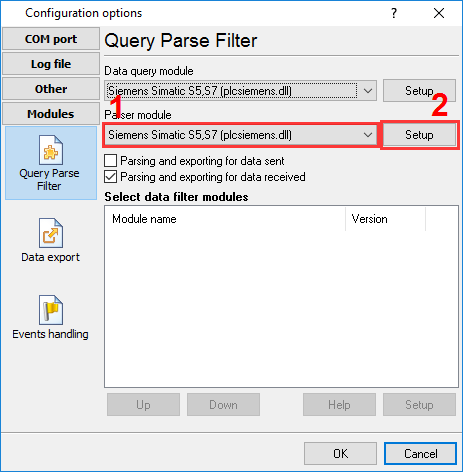
Fig.1. Selecting the plugin.
How to configure the plugin
The figure below shows how to configure the plugin. Please, look at the documentation for the full description of all settings.
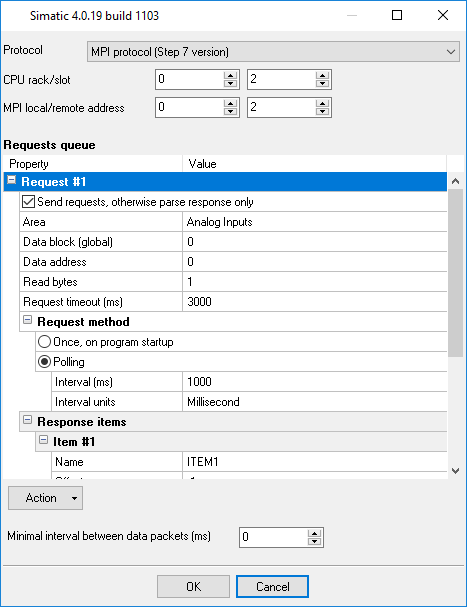
Fig.2. Configuring the plugin.
Read more about other plugins:
All plugins | DNP3 protocol | GE Fanuc Automation PLC (via CCM, SNP, SNP-X protocols) | Siemens SIMATIK PLC (S7-200, S7-300, S7-400, S5) | EtherNet/IP